📤 Video Upload Guide
How to upload your finished videos using Teams
⚡ Quick Steps
- Open Microsoft Teams on your phone
- Go to the "Video Uploads" channel
- Tap "Files" at the top
- Tap "Upload" and select your video
- Done! Marketing will sort it from there
📱 Step-by-Step Instructions
Step 1: Open Teams
Open the Microsoft Teams app on your phone. If you don't have it installed, download it from the App Store (iPhone) or Google Play (Android).
Step 2: Find the Video Uploads Channel
Navigate to the "Video Uploads" channel. You can find it by:
- Tapping Chat at the bottom
- Expanding Teams and channels
- Finding BFS - Marketing
- Tapping the "Video Uploads" channel
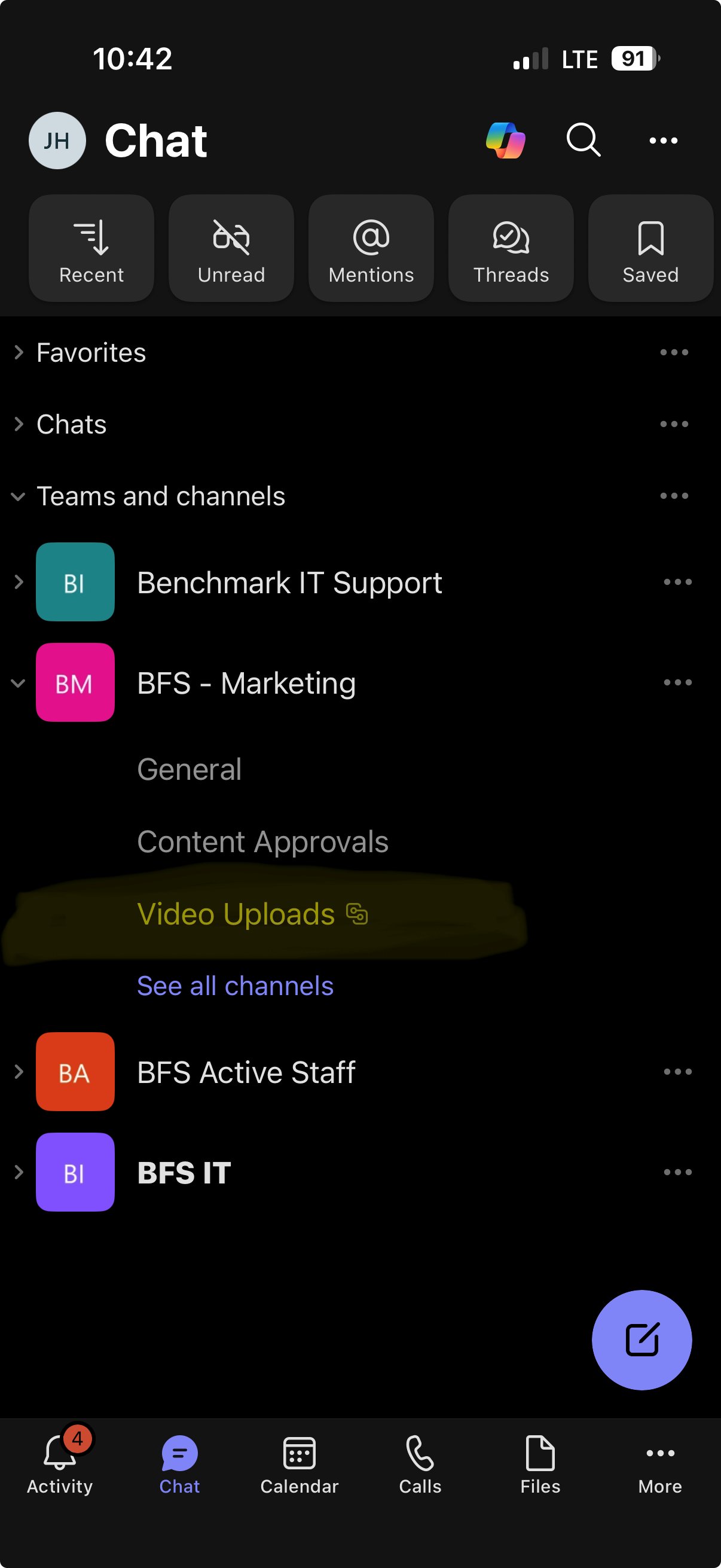
Tap "Video Uploads" under BFS - Marketing
Step 3: Go to Files and Upload
Once you're in the Video Uploads channel:
- Tap "Files" at the top (next to "Conversation")
- Tap the + button in the top right corner
- Select "Upload from this device" or "Photos and Videos"
- Find and select your video file
- Wait for the upload to complete

Tap "Files" then the + button to upload
Step 4: You're Done!
That's it! The marketing team will see your video and match it to the right video request. No need to notify anyone - we check the folder regularly.
📝 File Naming (Optional)
If you're able to rename your video file before uploading, it helps us sort videos faster. But this is completely optional - if you can't rename it, just upload it as-is!
YourOffice_VideoTopic.mp4
Examples:
Indianapolis_FosterCareTips.mp4Louisville_OfficeIntro.mp4Erie_Testimonial.mp4
Can't rename on your phone? No problem! Just upload the video with whatever name it has. Marketing will figure out which office it's from and match it to the right request.
💡 Tips
- Use WiFi - Video files can be large. Upload over WiFi when possible to avoid using your mobile data.
- Be patient - Large videos may take a few minutes to upload. Don't close Teams until it's done!
- Check it uploaded - After uploading, you should see your video in the Files list.
- One video at a time - If you have multiple videos, upload them one at a time to avoid issues.
🔧 Troubleshooting
Upload is taking forever
- Make sure you're on WiFi, not cellular data
- Large videos (over 100MB) can take 5-10 minutes
- If it seems stuck, try canceling and uploading again
- Check your internet connection
Can't find the Video Uploads channel
- Make sure you're signed in to Teams with your work account
- Search for "Video Uploads" in the Teams search bar
- Ask your supervisor or IT to add you to the channel if you don't have access
Upload failed or got an error
- Check that you have a good internet connection
- Make sure there's enough space on your phone
- Try closing Teams completely and reopening it
- If the video is very large (over 500MB), try compressing it first
Don't have Teams on my phone
- iPhone: Download from the App Store - search "Microsoft Teams"
- Android: Download from Google Play - search "Microsoft Teams"
- Sign in with your work email and password
❓ Frequently Asked Questions
Do I need to tell marketing when I upload?
Nope! We check the Video Uploads folder regularly. Your video will be seen and processed without you needing to notify anyone.
What format should my video be?
Most phone videos are already in a good format (MP4 or MOV). Just upload whatever your phone recorded - we can convert it if needed.
Can I upload from my computer instead?
Yes! Open Teams on your computer, go to the Video Uploads channel, click Files, and drag-and-drop your video or click Upload.
I uploaded the wrong video - what do I do?
You can delete it yourself from the Files tab, or just let marketing know and we'll remove it. Then upload the correct one.
How long until marketing sees my video?
We check the uploads folder multiple times per day. Your video will typically be processed within a few hours during business days.
📞 Need Help?
- Teams access issues: Contact IT support
- Video content questions: Email marketingbfs@benchmarkfs.org
- Upload problems: Contact IT support or your supervisor